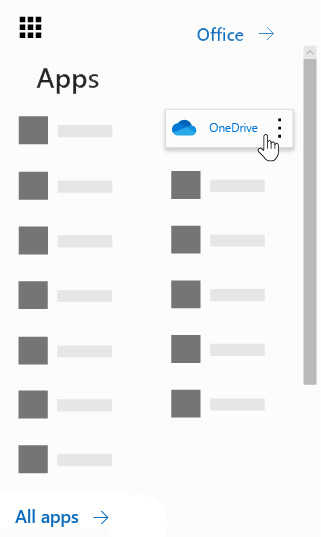
At the top of the page, select the app launcher in Outlook Web and then OneDrive.

Maple Bear Help Site. Troubleshooting, knowledge base, tech tips, security and platform server status.
Content:
By the end of this tutorial you will be able to upload files to OneDrive Business and share files securely.
What is OneDrive Business?
OneDrive is Microsoft’s cloud service that connects you to all your files allowing you to store and protect your files and share them with others and reach them from anywhere on all devices. All files you store on OneDrive are private by default unless you choose to share them with others. You can share any type of files or folders and collaborate on projects. You can also share with partners outside your organization.
By default, every Maple Bear Global Schools employee has an email account with an integrated OneDrive Business account with Maple Bear email with 1TB of space.
Tip: When sending emails from Outlook Web, you can attach a OneDrive file as a link instead of sending an attachment, and you can also give permission to edit the file via the link. This saves space in everyone’s mailbox.
How to find OneDrive Business
Follow these steps to access OneDriveBusiness.
1
Access your email address @maplebear.ca on the Portal Office website using your Internet browser.
If you need help connecting your @maplebear.ca email account click here >.
2
At the top of the page, select the app launcher in Outlook Web and then OneDrive.
Tips:
3
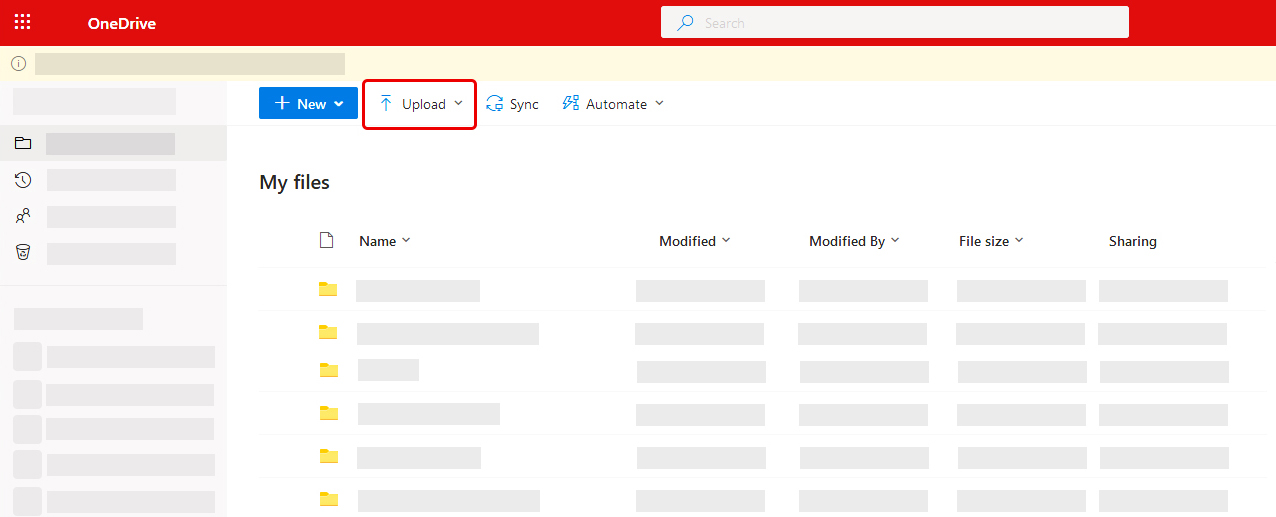
In OneDrive, click Upload button to upload file.
Note: This procedure can be done with a single file, folder, files or folders.
4
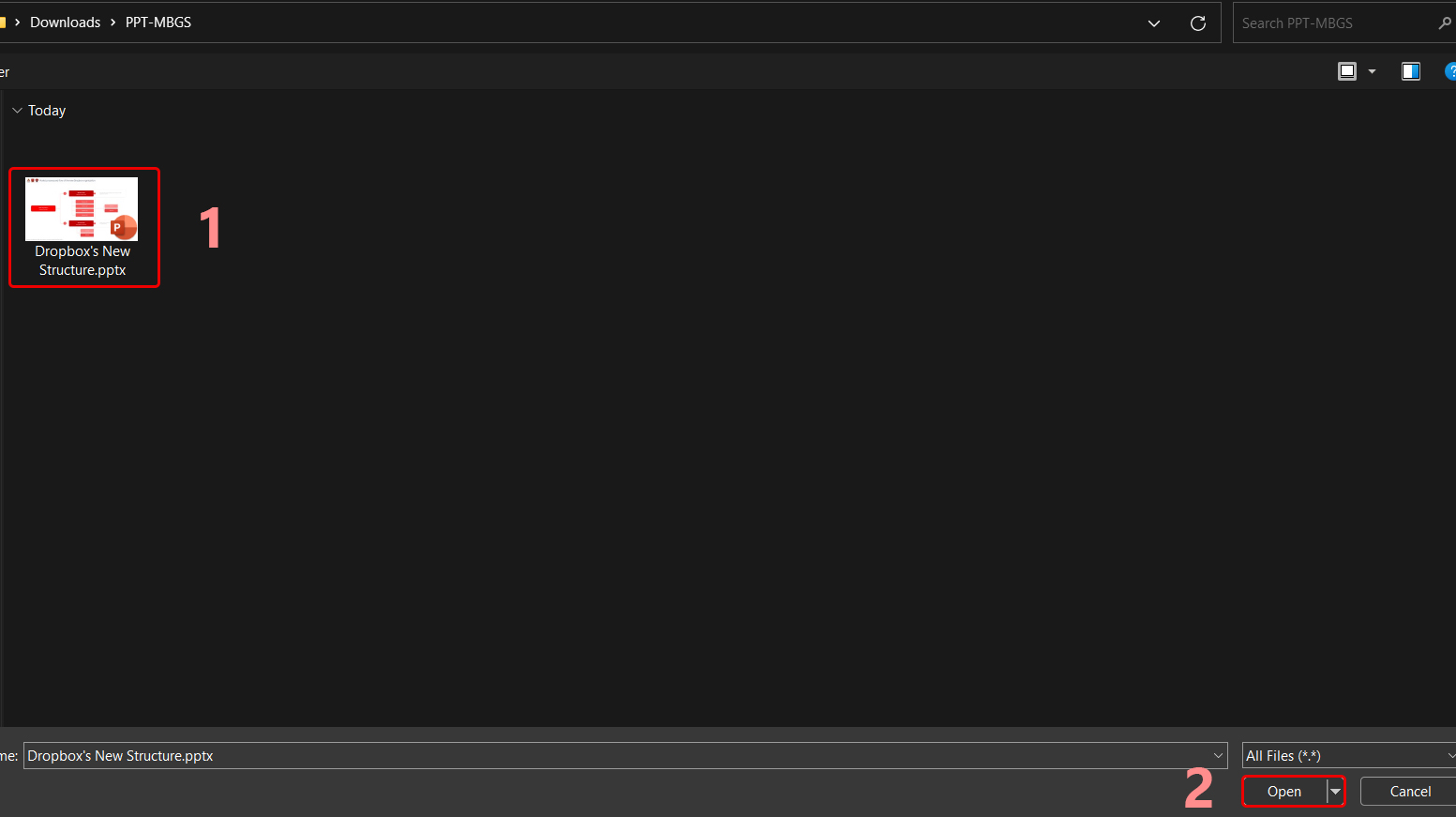
Select a file to upload the file and then click Open to upload the file.
5
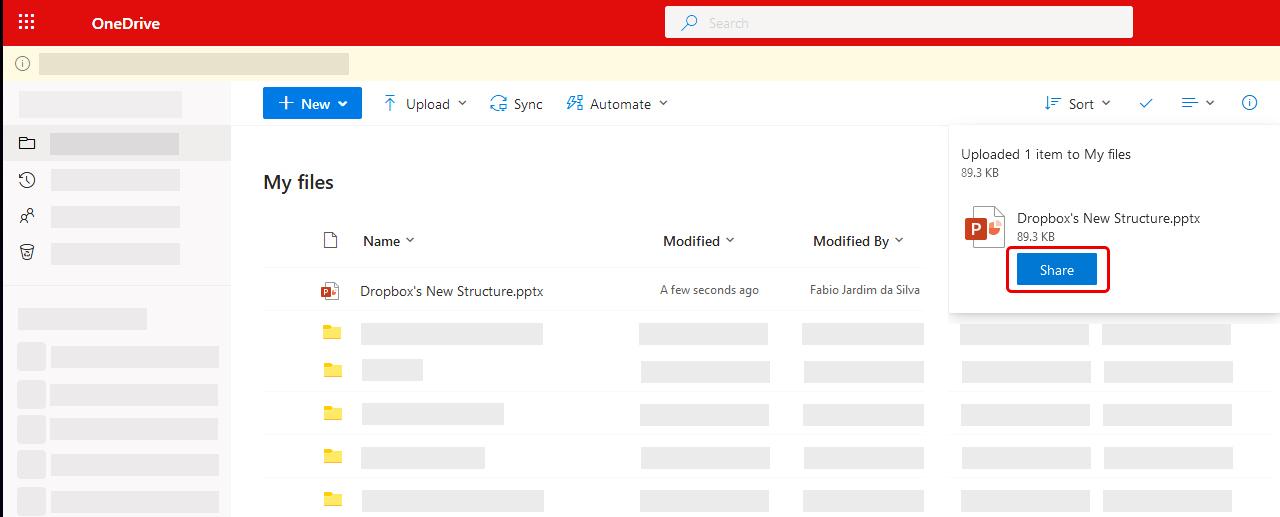
Click the Share Button to share the file with others.
Note: You can share files with people at Maple Bear, SEB and outside the organization and with any type of email.
6
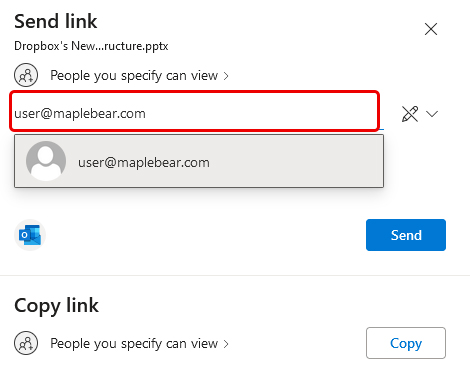
Enter the email address or email addresses you want to share the file and click the send button to share the file.
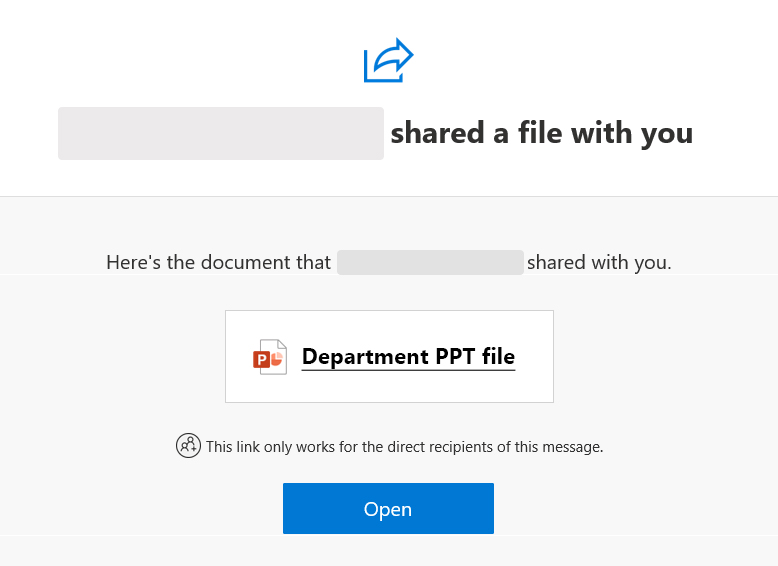
This will be the message that the user will receive. Informing what you are sharing.
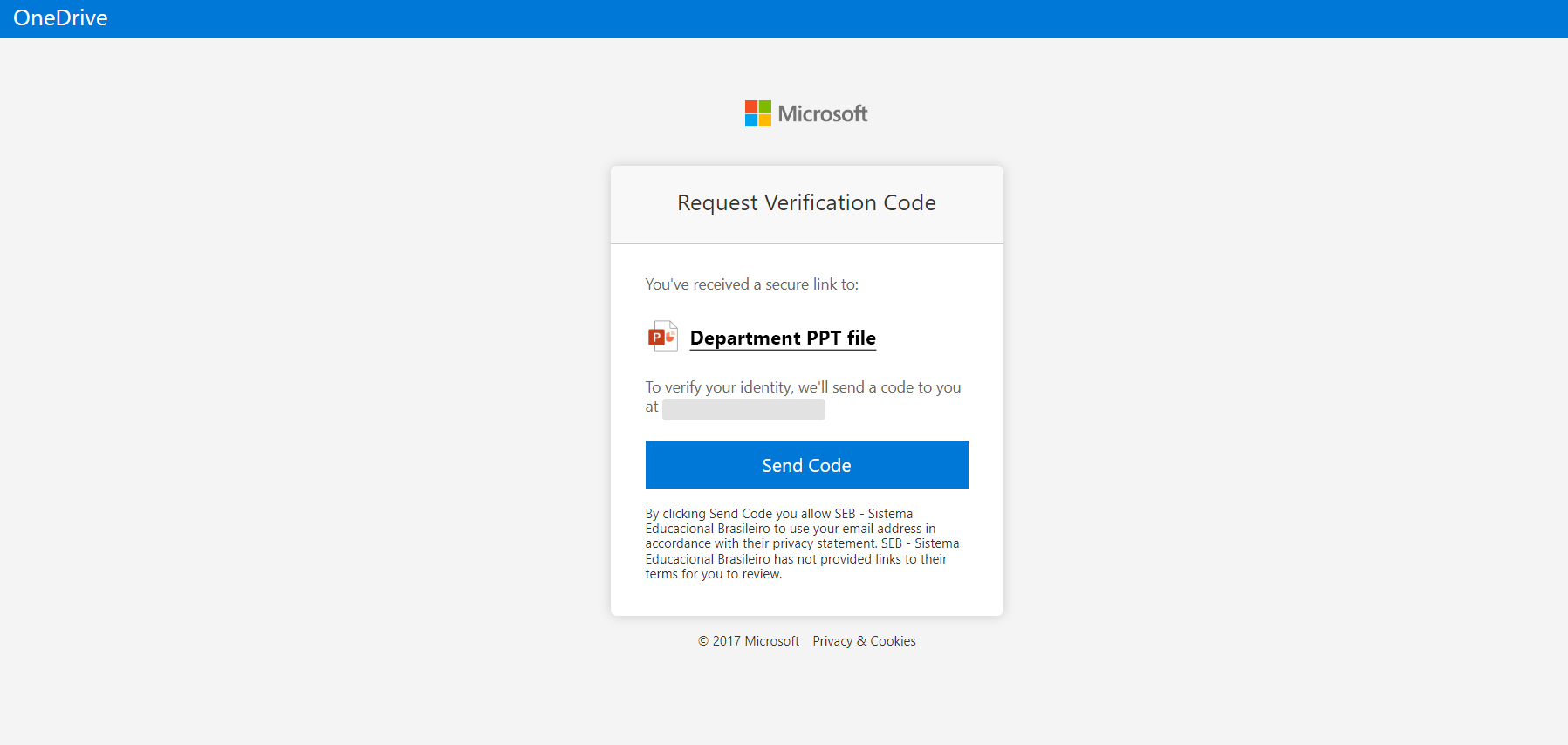
When opening the link in the email that this file share, you will be redirected to the internet browser and you will need to confirm your email through a code. This is a security that unauthorized people cannot access your file.
Notes:
* The content displayed in your email is fully responsible and will adapt to your device’s screen size. Therefore the content display may vary depending on the screen size.
| Cookie | Duration | Description |
|---|---|---|
| cookielawinfo-checkbox-analytics | 11 months | This cookie is set by GDPR Cookie Consent plugin. The cookie is used to store the user consent for the cookies in the category "Analytics". |
| cookielawinfo-checkbox-functional | 11 months | The cookie is set by GDPR cookie consent to record the user consent for the cookies in the category "Functional". |
| cookielawinfo-checkbox-necessary | 11 months | This cookie is set by GDPR Cookie Consent plugin. The cookies is used to store the user consent for the cookies in the category "Necessary". |
| cookielawinfo-checkbox-others | 11 months | This cookie is set by GDPR Cookie Consent plugin. The cookie is used to store the user consent for the cookies in the category "Other. |
| cookielawinfo-checkbox-performance | 11 months | This cookie is set by GDPR Cookie Consent plugin. The cookie is used to store the user consent for the cookies in the category "Performance". |
| viewed_cookie_policy | 11 months | The cookie is defined by GDPR Cookie Consent and is used to store whether or not the user has consented to the use of cookies. It does not store any personal data. |